
Google Assistant is an incredibly useful tool for managing tasks, setting reminders, and getting real-time information, but there may be times when you want to turn it off for privacy, battery saving, or other personal reasons.
Fortunately, turning off Google Assistant is a straightforward process, and you have several options depending on your preferences and device.
In this step-by-step guide, we’ll show you how to disable Google Assistant on different devices.
Why Turn Off Google Assistant?
There are several reasons why you might want to turn off Google Assistant temporarily or permanently:
- Privacy concerns: Google Assistant continuously listens for commands, which may raise privacy concerns for some users.
- Battery saving: Keeping Google Assistant active can drain your battery, especially on mobile devices.
- Avoid accidental activation: Sometimes, Google Assistant can get triggered unintentionally by voice or touch commands.
How to Turn Off Google Assistant on Android Devices
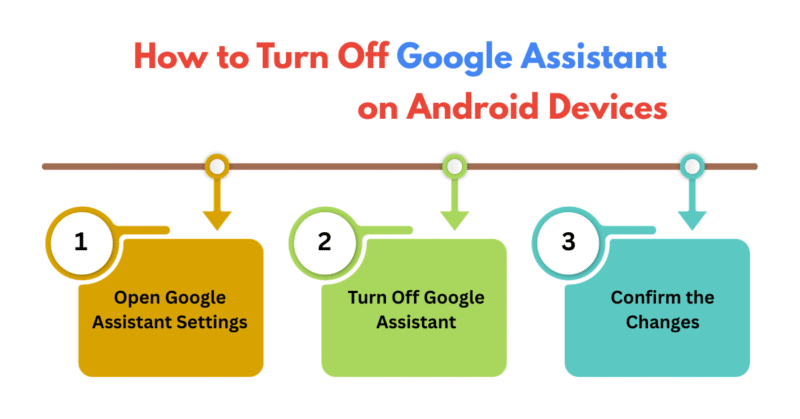
Turning off Google Assistant on Android devices is simple. You can either disable it temporarily or completely turn it off. Follow these steps:
Step 1: Open Google Assistant Settings
- Activate Google Assistant by saying “Hey Google” or pressing and holding the home button on your Android device.
- Once Google Assistant is active, tap the Explore icon in the lower right corner or say “Assistant settings.”
- Alternatively, you can open the Settings app on your phone, then scroll down to Google > Settings for Google Apps > Search, Assistant & Voice > Google Assistant.
Step 2: Turn Off Google Assistant
- In the Google Assistant settings, scroll down to the Assistant tab.
- Find the option labeled Google Assistant at the top of the screen.
- Toggle the switch off to disable Google Assistant. This will prevent it from responding to voice commands or activating accidentally.
Step 3: Confirm the Changes
Once you’ve disabled Google Assistant, the system will ask for confirmation. After that, Google Assistant will no longer be active, and the “Hey Google” hotword won’t trigger it.
How to Disable Google Assistant on Google Home Devices
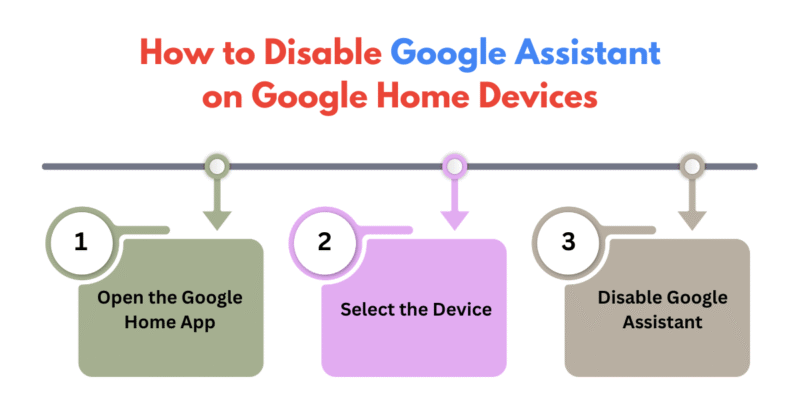
If you want to turn off Google Assistant on a Google Home device (such as Google Nest Hub, Google Nest Mini, or other smart speakers), here’s how:
Step 1: Open the Google Home App
- Download and open the Google Home app on your smartphone.
- Ensure your phone is connected to the same Wi-Fi network as your Google Home device.
Step 2: Select the Device
- From the home screen, select the device (e.g., Google Home or Nest Hub) that you want to turn off.
- Tap the settings gear icon in the top-right corner.
Step 3: Disable Google Assistant
- Scroll down and find the Google Assistant section.
- Toggle off the Google Assistant option.
- This will turn off voice commands for the selected Google Home device.
You can always re-enable Google Assistant by following the same steps and toggling the setting back on.
How to Turn Off Google Assistant on iPhone or iPad
Google Assistant is available as an app on iOS devices, and if you want to turn it off, you can disable it within the app settings. Follow these steps to turn off Google Assistant on your iPhone or iPad:
Step 1: Open the Google Assistant App
- Launch the Google Assistant app from your home screen.
- Tap your profile icon in the upper-right corner of the app.
Step 2: Turn Off Google Assistant
- From the profile menu, select Settings.
- Scroll to the Assistant section.
- Toggle off the Google Assistant option. This will stop the assistant from responding to voice commands.
Note: The Google Assistant app will still be available on your phone, but it won’t be activated unless you manually open it.
How to Disable “Hey Google” on Android
If you don’t want to turn off Google Assistant entirely but want to prevent it from activating when you say “Hey Google” or “OK Google,” you can disable the voice trigger. Here’s how:
Step 1: Open Google Assistant Settings
- Open the Google Assistant settings by saying “Hey Google” or pressing and holding the home button on your Android device.
- Tap the Explore icon or say “Assistant settings.”
- Alternatively, go to Settings > Google > Settings for Google Apps > Search, Assistant & Voice > Google Assistant.
Step 2: Disable Voice Match
- Under the Assistant tab, look for the Voice Match option.
- Toggle off Hey Google or Voice Match. This will disable the “Hey Google” feature, so your assistant will no longer be activated by your voice.
This will stop Google Assistant from responding to the hotword, but the assistant will still be available for use through manual interactions.
How to Disable Google Assistant in Incognito Mode (Google Chrome)
If you want to use Google Chrome without Google Assistant popping up, here’s how to disable it while browsing:
Step 1: Open Chrome Settings
- Open the Google Chrome browser on your device.
- Tap the three-dot menu (top-right corner) and select Settings.
Step 2: Disable Google Assistant in Incognito
- Scroll down to the Google Assistant section.
- Toggle off Use Google Assistant.
This will prevent Google Assistant from opening when browsing in Incognito Mode.
How to Completely Delete Google Assistant Data
If you’re concerned about the data Google Assistant collects, you can delete your voice history and data stored by Google. Here’s how:
Step 1: Open Google Assistant Settings
- Open Google Assistant and say, “Assistant settings,” or navigate to Settings > Google > Search, Assistant & Voice > Google Assistant.
Step 2: Manage Assistant Data
- Scroll to the Assistant tab and select Your Data in Assistant.
- You will see an option to delete voice recordings or clear all data that Google Assistant has collected. Select Delete All Assistant Activity to remove everything.
This action will delete all data, including previous interactions with Google Assistant, ensuring your information is no longer stored by Google.
Conclusion
Turning off Google Assistant can help you protect your privacy, save battery, and reduce interruptions. Whether you’re using an Android device, iPhone, or Google Home, the process is simple and customizable based on your preferences.
By following the steps in this guide, you can manage Google Assistant to work exactly the way you want—whether that means turning it off entirely, disabling the voice trigger, or removing stored data for better privacy.
If you ever want to turn it back on, you can always revisit the settings and make the necessary changes to re-enable Google Assistant when needed.
Read more articles on Digital Marketing.